How to Upload O’Level Result on JAMB Portal: Step-by-Step Guide
Contents
- How to Upload O’Level Result on the JAMB Portal
- What You Need Before Uploading Your O’Level Result
- How to Verify Your O’Level Result
- How to Upload Your Verified O’Level Result to JAMB
- How to Upload Two O’Level Sittings
- Important Things to Know About the New JAMB O’Level Upload Process
- Why JAMB Introduced the New O’Level Result Process
- What to Do If You Have Two O’Level Sittings
- Frequently Asked Questions About JAMB O’Level Upload
- Final Advice
How to Upload O’Level Result on the JAMB Portal
Candidates who need to submit their O’Level results to JAMB can now complete the process from the comfort of their homes through JAMB’s updated O’Level result verification and upload system. The Joint Admissions and Matriculation Board (JAMB) has introduced a process that allows candidates’ results to be verified directly with the relevant examination bodies before they are uploaded to the candidate’s JAMB profile.
According to the JAMB Bulletin, the new arrangement is designed to make the process easier, faster and safer while reducing unnecessary visits to CBT centres and the problems associated with manual result uploads. JAMB stated that verified results can be checked against examination-body records before being downloaded into a candidate’s profile.
What You Need Before Uploading Your O’Level Result
Before starting the process, candidates should have the necessary examination details available. These include:
- Your NIN.
- Your examination number.
- Your examination series.
- Your examination year.
- An active email address.
- A valid GSM number.
- Access to a payment method such as a debit card or bank transfer.
How to Verify Your O’Level Result
The first stage is to verify your O’Level result and obtain a Verification Code. JAMB’s current process, as published in its August 24, 2026 Bulletin, involves the following steps.
Step 1: Visit the Result Verification Website
Visit buyresultsverificationcode.ng to begin the verification process.
Step 2: Verify Your NIN
Enter your NIN in the required field and click “Verify NIN”.
Step 3: Select Your Number of Sittings
Select the number of O’Level sittings you want to verify and choose the appropriate examination body or examination bodies. After making your selections, click “Continue”.
Step 4: Enter Your Contact Details
Enter your email address and GSM number, then click “Pay Now”. You will be redirected to the payment gateway to complete the payment.
Step 5: Make Payment
Complete the payment using the available payment options, including a debit card or bank transfer.
Step 6: Enter Your Examination Details
After successful payment, enter the details of the examination result you want to verify. JAMB specifies the following information:
- Examination number
- Examination series
- Examination year
Verify the result or results for the number of sittings selected and proceed to obtain your Verification Code.
How to Upload Your Verified O’Level Result to JAMB
After obtaining your Verification Code, the next stage is to submit the verified result to JAMB.
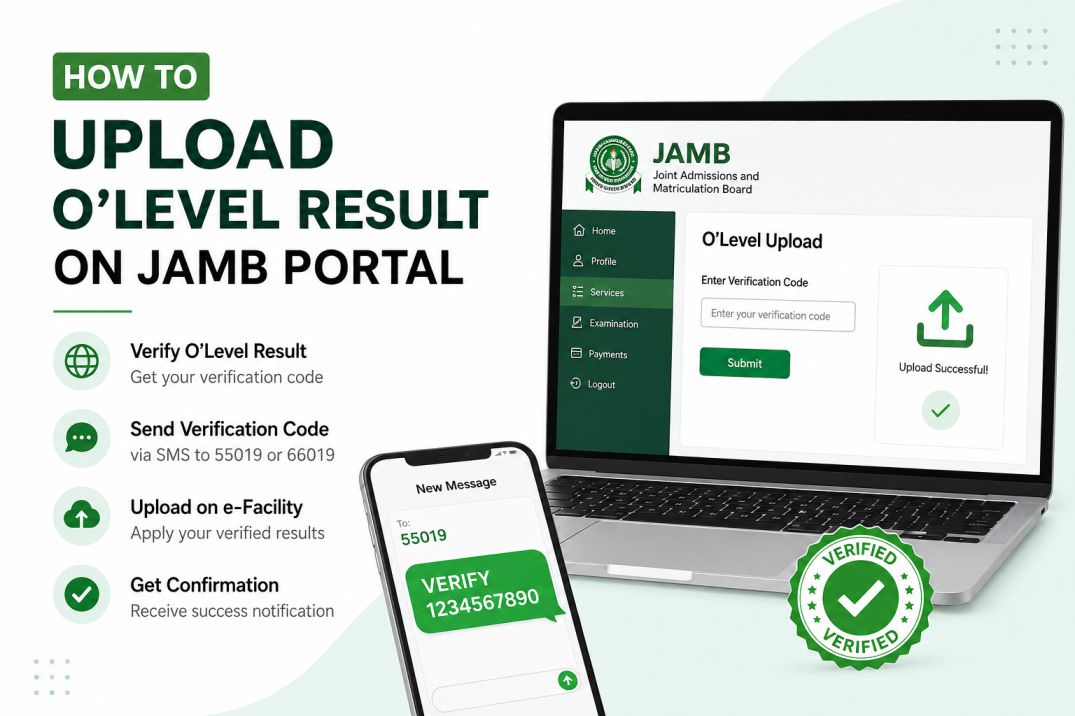
Step 7: Send Your Verification Code by SMS
Send the following format by SMS:
VERIFY [Verification Code]
Send the message to 55019 or 66019.
JAMB states that your result will be uploaded and you will receive a notification after the process.
How to Upload Two O’Level Sittings
Candidates who are using two O’Level sittings will receive a notification directing them to their profile on JAMB e-Facility after submitting the verification code.
Step 8: Log in to Your JAMB e-Facility Profile
Log in to your JAMB e-Facility profile and access your dashboard.
Step 9: Click “2026 UTME O’Level Upload”
On the e-Facility dashboard, click “2026 UTME O’Level Upload”.
Step 10: Enter Your Verification Code
Enter the Verification Code you obtained after verifying your results. Your two verified results will then be displayed.
Step 11: Select the Required Subjects
From the displayed results, select the subjects you want to apply to your O’Level profile. JAMB specifies that candidates must:
- Select a minimum of 5 subjects.
- Select a maximum of 9 subjects.
- Ensure that no subject is selected more than once.
Step 12: Apply the O’Level Results
After selecting the required subjects, click “Apply the O’Level Results”.
Once the upload is successfully completed, you will receive a notification confirming the submission.
Important Things to Know About the New JAMB O’Level Upload Process
- Result verification comes before the final application of verified results for candidates following the two-sitting process.
- Your examination details must be entered correctly, including your examination number, series and year.
- Candidates using two sittings are required to access the O’Level Upload option on their JAMB e-Facility profile after receiving the relevant notification.
- Subject selection matters: JAMB states that candidates must select at least 5 and not more than 9 subjects, without selecting any subject more than once.
- Keep your Verification Code safe until the upload process has been completed.
- Check the confirmation notification after applying the O’Level results to ensure that the submission was successful.
Why JAMB Introduced the New O’Level Result Process
JAMB explained that the new arrangement is intended to address some of the challenges associated with manual O’Level uploads. These include misplaced or mixed-up paper results, unverified or fraudulent results, and errors when subjects and grades are entered manually.
Through the integration of JAMB’s e-Facility platform with examination bodies, results can be verified directly against the records of the relevant examination body before being downloaded into the candidate’s profile.
What to Do If You Have Two O’Level Sittings
If you are using two O’Level results, make sure both results are included during the verification process. After verification, follow the notification to your JAMB e-Facility profile, select “2026 UTME O’Level Upload”, enter your Verification Code and review the two verified results displayed on your profile.
You should then select the required subjects while observing JAMB’s minimum of 5 subjects and maximum of 9 subjects, ensuring that no subject is selected more than once.
Frequently Asked Questions About JAMB O’Level Upload
Can I upload my O’Level result from home?
Yes. JAMB’s August 2026 Bulletin states that candidates can now upload their O’Level results from the comfort of their homes through the new verification and upload arrangement.
What is needed to verify an O’Level result?
The process requires your NIN, the number of sittings, the relevant examination body or bodies, contact details, payment and your examination details, including examination number, series and year.
How do I send my O’Level Verification Code?
Send VERIFY followed by your Verification Code to 55019 or 66019.
How many O’Level subjects can I select?
For the two-sitting e-Facility application process described by JAMB, candidates must select a minimum of 5 subjects and a maximum of 9 subjects. A subject must not be selected more than once.
What happens after I successfully upload my O’Level result?
JAMB states that you will receive a notification confirming the successful submission of your O’Level results.
Final Advice
O’Level results are an important part of the JAMB admission process, so candidates should take the upload and verification process seriously. Enter your examination details carefully, use the correct Verification Code and review the results and subjects displayed on your profile before applying them.
JAMB’s new process is intended to make O’Level result verification and upload more convenient for candidates while reducing errors associated with manual uploads. If you are using two sittings, pay particular attention to the e-Facility stage where you select the required subjects and apply the verified results to your profile.
UTME2027 Editorial Team
The UTME2027 Editorial Team publishes accurate, timely and well-researched JAMB news, admission updates, CBT preparation guides and official educational information for Nigerian students. Every article is reviewed before publication to ensure accuracy and clarity.